Cin7 Login Issues Troubleshooting
- Check they are using Chrome
- Top Tip – send them an email and check to see if they get it, this will confirm it is set up correctly in the system.
- Check that the email address has been set up and live before it is entered into Cin7
- Check if email is correctly spelled in settings
- Ask: Have you logged in before – if logged in but 2FA is an issue all good
- If not, has the email been received to reset login
- Check Junk email
- Check with internal systems if firewall has stopped email from coming through
- Tip: Remove email in user area – and replace with test@test.com then re-add email in
- Check with Cin7 to reset email if still not working. If they have manged to log in in the past use the forgotten password page on itself.
- Chek they are logging into the right Cin7 Core/Omni.
- If they have managed to log in the past, please use the forget passwords feature on the Cin7 website.
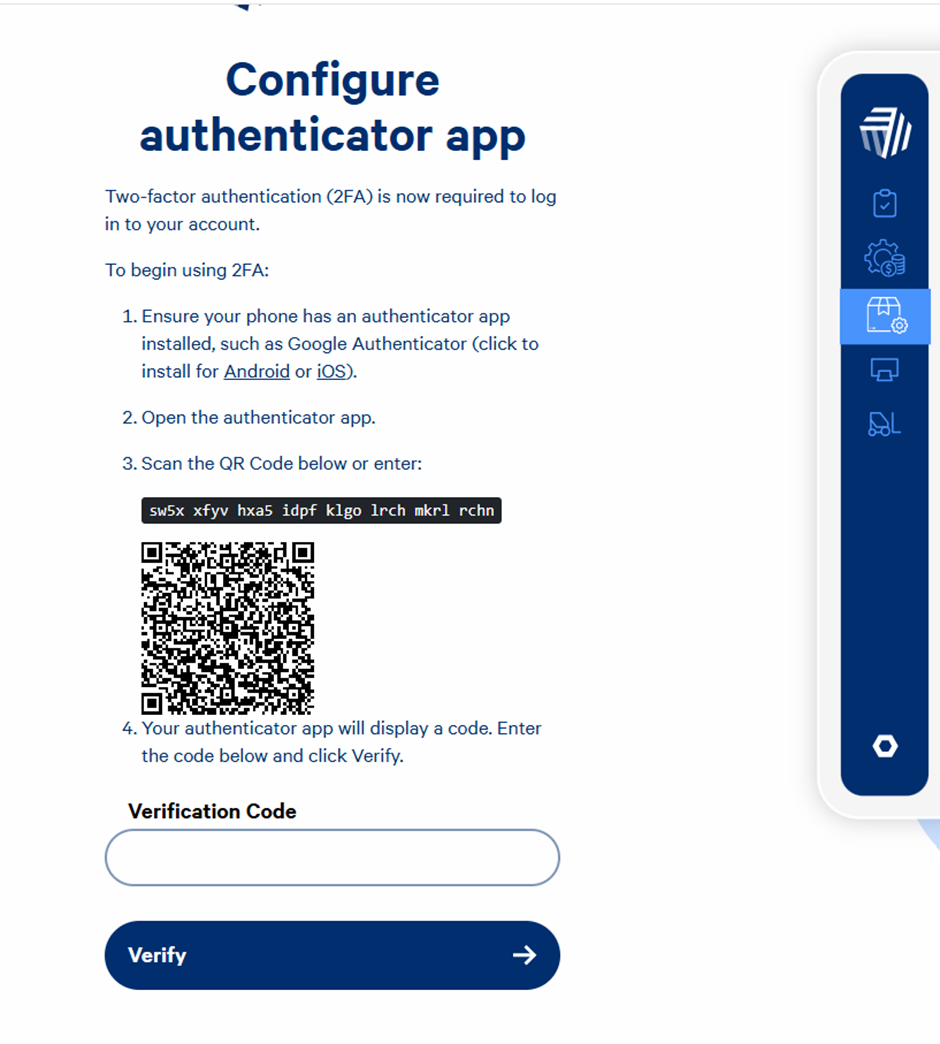
- 2FA – ask user to remove option from the App – reset 2FA in user settings in Cin7 to force the QR code to reappear, then re-add to the 2FA app on the phone. Needs reset if they have a new phone and can’t access old phone.
- Good options Apple: Google Authenticator Android: Authy
- Mention to keep temp codes if required
- 2FA – can be a timing issue if error is “invalid code” check time on user’s device matches in Cin7 (in Cin7 settings check “region” is correct also). Includes phone/computer time zone.
- Sorry, something went wrong – white screen “something went wrong” pink bar- Cache issue.
Refresh Cache and Cookies
- Notes before starting:
- Note: This will clear username and password data that is normally pre-filled on sites. If you’re “logged in” to Chrome with your Gmail account before doing the refresh, often it saves quite a few more of your emails/passwords for different sites – you will still lose highly secure site data like “Xero” etc regardless so do take make sure you have this data handy before doing the refresh.
- To check if you really need to do the refresh, visit the page in Incognito mode – if it works in Incognito but not on the regular page, then this confirms you need to do the reset.
- To refresh:
- 1) Within the Chrome browser (recommended for correct use of Cin7) click on three dots in the top left corner of the screen
- 2) Choose “More Tools”
- 3) Click “Clear Browsing Data”
- 4) Ensure that Basic is selected, not Advanced
- 5) Next to “Time Range” change it to “ALL TIME” or it won’t work
- 6) Select the checkboxes for cookies and other site data as well as cached images and files
- 7) Click “Clear Data”
- 8) Test to see it has worked